Logo Use Cases
|
Feb 28, 2026
Logo Resolution and DPI Explained for Print and Web
If you have ever sent a logo to a printer and received a pixelated, blurry result, or uploaded a perfectly fine PNG to a website only to see it look soft on a Retina screen, you have run into a resolution problem. And you are definitely not alone.
What's in this guide
If you have ever sent a logo to a printer and received a pixelated, blurry result, or uploaded a perfectly fine PNG to a website only to see it look soft on a Retina screen, you have run into a resolution problem. And you are definitely not alone.
Resolution confusion is one of the most common pain points in brand design. The terms DPI, PPI, 300 DPI, and 72 PPI get thrown around constantly, but rarely explained clearly. This guide fixes that.
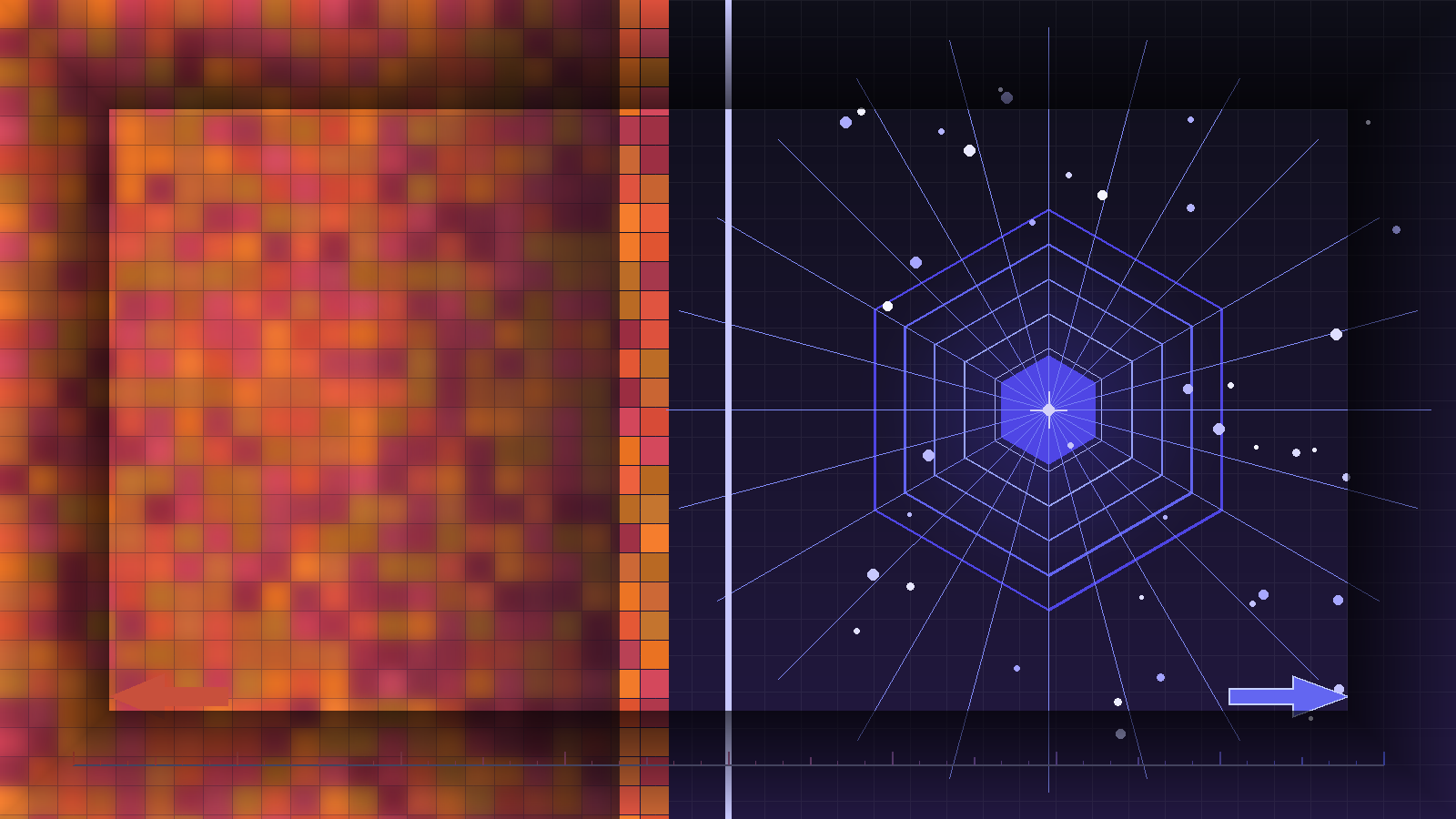
The single most important thing to understand upfront: resolution only affects raster (pixel-based) files like PNG and JPG. Vector files like SVG and EPS are resolution-independent, meaning they scale to any size without losing quality. This distinction shapes every decision in logo production.
Key Definition
Logo resolution refers to the number of pixels or dots used to display or print a logo. Higher resolution means more detail, but the correct resolution depends entirely on whether the logo is going to a screen or a printing press.
1. What Is Logo Resolution
Resolution describes how much visual information is packed into a given area. For digital images, this means pixels per inch. For print, it means dots per inch. When a logo has more pixels or dots in the same space, it appears sharper and more detailed.
But resolution is not just about pixel count in isolation. A logo that is 2000 x 2000 pixels at 72 PPI will print at roughly 27 inches wide. The same file re-tagged as 300 PPI in Photoshop (without resampling) will print at about 6.7 inches wide and look crisp. The pixel data does not change. The print size does.
Raster vs Vector: The Foundation
Before going further, it is essential to understand the two categories of logo files:
🔲 Raster Files
- Made of a fixed grid of pixels
- Formats: PNG, JPG, GIF, TIFF, BMP
- Resolution-dependent
- Look pixelated when scaled up
- File size increases with dimensions
⬟ Vector Files
- Made of mathematical paths and curves
- Formats: SVG, EPS, AI, PDF
- Resolution-independent
- Scale infinitely without quality loss
- File size stays small regardless of output size
The practical implication: if your logo exists only as a low-resolution PNG, you have a problem waiting to happen. Every serious brand should have a vector master file, from which all raster exports are derived.
The Print Size Formula
If you have a raster logo file and want to know the maximum size it can print at 300 DPI, here is the formula:
Max Print Size (inches) = Pixel Dimension ÷ DPI
Example: A 3000px wide logo at 300 DPI = 10 inches wide maximum print size
So a 3000 x 1500 pixel PNG at 300 DPI can print cleanly at 10 × 5 inches. Push it beyond that and quality degrades. This is why vector is always the preferred format for print: there is no maximum size.
2. DPI vs PPI: What's the Actual Difference
These two terms are often used interchangeably, but they refer to different physical processes. Understanding the distinction helps you speak confidently with printers and web developers.
| Term | Stands For | Where It Applies | What It Measures |
|---|---|---|---|
| DPI | Dots Per Inch | Physical printing | Ink dots a printer lays down per inch of paper |
| PPI | Pixels Per Inch | Digital screens | Pixels packed into one inch of screen real estate |
DPI is a property of printing hardware. A desktop inkjet printer typically outputs at 600 to 1200 DPI. An offset printing press used for professional brochure design can reach 2400 DPI. The image file fed into that printer needs to be at 300 DPI to saturate that output properly. Sending a 72 DPI image to a 300 DPI printer does not magically improve it; the printer interpolates, and the result looks soft.
PPI is a property of screen density. A standard 1080p monitor displays around 96 PPI. Apple Retina displays on MacBook Pros reach 254 PPI or higher. This is why logos designed only for 96 PPI can look blurry on modern high-density screens unless served as SVG or at 2x resolution.
Common Misconception
Changing a file's DPI metadata in Photoshop without resampling does NOT add new pixel data. It only changes how large the file prints. The actual image quality is determined by pixel count, not the DPI tag alone.
3. Best Logo Resolution for Web
The web has historically used 72 PPI as its standard, inherited from early Mac monitors. Modern displays have blown past this, but the standard has stuck in software workflows even though the physics have changed significantly.
Why 72 PPI Is Both Correct and Misleading
When you export a PNG logo at 72 PPI for use on a website, what actually matters is the pixel dimensions, not the PPI tag. A browser renders images based on their pixel size, not their DPI metadata. A 400 x 200 pixel PNG at 72 PPI renders the same size in a browser as a 400 x 200 pixel PNG at 300 PPI.
Where PPI starts to matter is on high-density (Retina) displays. Apple introduced Retina displays starting in 2010, and StatCounter data shows that high-DPI devices now represent the majority of web browsing sessions globally. If you serve a standard resolution PNG to a 2x Retina display, the browser scales it up by 2x, and the result looks soft and pixelated.
The Correct Approach for Web Logos
SVG is the definitive answer for web logos. An SVG file is vector-based, meaning it renders perfectly at any screen density because the browser is drawing the shapes mathematically, not scaling pixels. You write the SVG once, and it is always sharp, whether the viewer is on a 1x desktop monitor or a 3x phone screen.
When SVG is not possible (for example a complex photograph-style logo or a legacy system that won't accept SVG), the next best approach is to export at 2x or 3x pixel dimensions. For a logo that displays at 300 x 150 px on screen, export it at 600 x 300 px or 900 x 450 px, then use CSS or the srcset attribute to serve the right size.
Pro Tip for Web
Always use SVG for website logos. SVG files are typically under 20KB, render crisply on every device, and can be styled with CSS. Browse colored SVG logo formats or white SVG logos ready for web use.
For social media profiles, platforms compress and resize images aggressively. LinkedIn profile images, for example, display at 400 x 400 px but it is best practice to upload at 800 x 800 px or larger to ensure sharpness after their compression algorithms run. Twitter and Instagram follow similar patterns.
For a deeper comparison of web-friendly formats, see our guide on best logo formats for websites.
4. Best Logo Resolution for Print
Print is where resolution mistakes become expensive. A blurry logo on a 5,000-unit print run of business cards or trade show banners cannot be undone cheaply.
The 300 DPI Rule
300 DPI is the industry standard for commercial print. This figure comes from the limits of human visual acuity. At normal reading distance (roughly 12 inches), the human eye cannot distinguish individual dots finer than about 300 per inch. Professional offset printing presses use a screen ruling of 133 to 175 lines per inch (LPI), and the standard calculation to match that quality requires image resolution at roughly 1.5 to 2x the LPI, which lands at 300 DPI.
Source: Standard commercial print specifications consistently reference 300 DPI as the minimum for photographic quality output.
When 300 DPI Is Not Enough (and When It Is Too Much)
Large-format printing is a common exception to the 300 DPI rule. A billboard that is viewed from 50 feet away does not need 300 DPI because the viewing distance compensates. Large-format printers typically require:
- Standard commercial print (brochures, business cards, flyers): 300 DPI minimum
- Large-format banners viewed from 3–10 feet: 150 DPI is acceptable
- Billboards and vehicle wraps viewed from 30+ feet: 72–100 DPI may be sufficient
- Fine art and photographic printing: 400–600 DPI
For logos specifically, vector EPS or PDF is the gold standard for print. It bypasses the DPI question entirely because the printer's RIP (Raster Image Processor) renders vector paths at the printer's native resolution. The result is always mathematically perfect edges, regardless of size. See our deep-dive on EPS logo files explained and the complete print-ready logo setup guide.
Print Trap to Avoid
Never upscale a low-resolution PNG to reach 300 DPI. Adding an "Upsample" in Photoshop or using an AI upscaler does not recover lost detail. It creates blurry, interpolated pixels. Always start from a vector source for print work.
Need a Print-Ready Version of Your Logo?
Download vector formats directly and send them to your printer with confidence.
5. Vector Logos vs Raster Logos
The vector vs raster distinction is the single most important concept in logo file management. Here is a direct comparison across the criteria that matter most in real production work.
| Property | Vector (SVG, EPS, AI) | Raster (PNG, JPG, TIFF) |
|---|---|---|
| Scalability | Infinite, no quality loss | Fixed; degrades when upscaled |
| Resolution dependence | Resolution-independent | Resolution-dependent |
| File size | Usually very small (5–50KB) | Can be large depending on pixel count |
| Transparency | Native support | Only PNG and GIF support transparency |
| Editability | Fully editable shapes, colors, type | Destructive edits, limited after rasterizing |
| Print suitability | Preferred for all print | Acceptable only if 300+ DPI at output size |
| Web suitability | Ideal (SVG) | Acceptable for PNG on non-Retina screens |
| Color profiles | RGB and CMYK supported | Varies; JPG is RGB by default |
| Browser compatibility | SVG is supported in all modern browsers | Universal |
| Typical use | Master file, print, web, Figma, PowerPoint | Web fallback, email, social media |
Practical Scenario: Business Card vs Billboard
Imagine a company asks for their 200 x 80 pixel PNG logo to be placed on a business card (3.5 × 2 inches) and also stretched across a trade show banner (8 × 3 feet). At 300 DPI, a 200 x 80 pixel logo can print at about 0.67 × 0.27 inches cleanly. The business card would already require scaling it up 5x, causing visible pixelation. The banner would be a complete disaster.
The same company provides their SVG logo file. The graphic designer scales it to any size needed. On the business card, the logo is pin-sharp. On the 8-foot banner, it is equally pin-sharp. Zero extra effort, zero quality compromise. This is why maintaining your master logo as a vector file is non-negotiable for any serious brand.
If you use Figma for design work, see our guide on how to use logos in Figma. For PowerPoint and presentation workflows, check using logos in PowerPoint.
6. Why Your Logo Looks Blurry (and How to Fix It)
Blurry logos are almost always traceable to one of four root causes. Here is a diagnostic checklist:
Troubleshooting Checklist
- Start from a vector master file (SVG, AI, or EPS) whenever possible
- Export raster files at 300 DPI for any print use
- Export raster files at 2x pixel dimensions for Retina web display
- Use PNG, not JPG for logos. JPG uses lossy compression that creates artifacts around sharp edges and type
- Check that you are not using an image that has been screenshotted from a PDF or presentation. Screenshots are typically 72–96 PPI and degrade heavily when used in production
- If receiving a logo from a client, always request the original source file (Illustrator or EPS), not just a PNG export
- Never upscale a raster logo file to increase its DPI. Photoshop interpolation cannot add real pixel detail
- Never save logos as JPG. Even at high quality, JPG compression visibly degrades logo edges
- Never use a logo taken from a webpage screenshot as a print source. What looks fine on screen will print poorly
7. Quick Decision Table
Use this table as a reference when choosing your logo format and resolution for any specific use case.
| Use Case | Best Format | Resolution | Notes |
|---|---|---|---|
| Website header | SVG | Resolution-independent | Scales to all screen densities; falls back to PNG at 2x |
| Social media profile | PNG | 800 x 800 px minimum | Platform compresses on upload; start large to retain quality |
| Email signature | PNG | 2x intended display size | Avoid SVG in email; PNG at 72–144 PPI depending on client |
| Business card (print) | SVG / EPS | 300 DPI if raster | Vector strongly preferred; small size demands precision |
| Brochure / flyer (print) | EPS / PDF | 300 DPI if raster | Ensure CMYK color profile for accurate print colors |
| Trade show banner (3–10 ft) | SVG / EPS | 150 DPI if raster | Large-format printers accept 150 DPI; vector is still better |
| Billboard / vehicle wrap | SVG / EPS | 72–100 DPI at final size | Viewed from distance; vector required for size flexibility |
| Merchandise (embroidery, screen print) | SVG / EPS | N/A (vector paths) | Embroidery software requires vector paths; simplify complex logos |
| PowerPoint / Keynote | SVG or PNG | 2x screen resolution | Insert SVG natively in modern PowerPoint; PNG at 2x for others |
| Figma design files | SVG | Resolution-independent | Import SVG into Figma for scalable, editable components |
8. How to Check a Logo's DPI
Knowing your logo's current DPI before sending it to a printer or a client is a basic quality control step. Here are four ways to check it across common tools.
Adobe Photoshop
Open the file and navigate to Image > Image Size. In the dialog box, you will see the pixel dimensions at the top and the Resolution field below it (in pixels/inch). If the resolution is below 300 and the pixel dimensions are small, you need a higher-resolution source.
Adobe Illustrator
Illustrator works natively in vectors, so DPI only applies to placed (embedded) raster images. To check, select a placed raster image and look at the Document Info panel (Window > Document Info). For vector artwork itself, DPI is irrelevant because the file is resolution-independent.
Mac Preview
Open the image in Preview, then go to Tools > Show Inspector (or press Cmd+I). Click the Info tab and you will see the DPI listed under "Image DPI." This is the quickest method for quick checks on Mac without needing design software.
Windows (File Properties)
Right-click the image file, choose Properties, and navigate to the Details tab. Scroll down to find "Horizontal resolution" and "Vertical resolution" listed in DPI.
Free Online Tools
Several free browser-based tools allow you to drop an image and instantly read its DPI metadata. Search for "image DPI checker online" to find options from Photopea (a free browser-based image editor) or similar tools. These are useful when you do not have design software installed.
Important Caveat
DPI metadata in a file can be changed without changing the actual pixel data. A printer or online tool will tell you the tagged DPI, but the real quality is determined by pixel dimensions divided by the intended print size. Always verify both.
Frequently Asked Questions
These are the questions we see most often from designers, brand managers, and print buyers working with logo files.
Does DPI matter for SVG logos?
No. SVG is a vector format, and DPI is a concept that applies to raster (pixel-based) images. Because SVG files describe shapes mathematically rather than as a grid of pixels, they have no fixed resolution. They can be output at any DPI the printer or display supports. This is the key reason SVG is the preferred format for logos: you never have to worry about resolution.
Is 72 DPI bad for logos?
Not necessarily, but context matters. For web use, 72 PPI is the legacy standard for screen display, and a well-sized PNG at 72 PPI will look fine on standard monitors. On Retina/HiDPI screens, a 72 PPI image will appear soft. For any print application, 72 DPI is inadequate and will produce a visibly blurry result. Always use 300 DPI (or vector) for print.
Can I convert a 72 DPI logo to 300 DPI?
You can change the DPI metadata, but you cannot manufacture new pixel detail that was never there. Upsampling a 72 DPI image to 300 DPI in Photoshop will produce a blurry, interpolated result that is larger in file size but no sharper in quality. The correct approach is to go back to the vector source (AI, EPS, or SVG) and export a new raster file at 300 DPI with appropriate pixel dimensions. If no vector exists, the logo needs to be redrawn.
What resolution should I send to a printer?
The best answer is to send a vector EPS or PDF and let the printer's RIP handle it. If you must send a raster file, provide it at 300 DPI at the actual intended print size. For a 5-inch logo, that means a file that is at minimum 1500 x the appropriate number of pixels for the height. Always confirm with your printer's submission specifications before sending, as requirements vary by vendor and output type.
How big can I print my logo?
For raster logos: divide pixel width by 300 to find the maximum clean print width in inches at commercial print quality. A 3000px wide logo can print up to 10 inches wide at 300 DPI. For vector logos: there is no practical limit. A well-constructed vector logo can print on a billboard or a business card with identical quality. This is why vector is the master format for professional logo systems.
What happens if DPI is too high?
Nothing bad. Higher DPI than necessary simply means a larger file size with no visible improvement (beyond the threshold of human perception). At normal viewing distance, there is no perceptible quality difference between 300 DPI and 600 DPI. The downside is only the larger file size, which can slow export and upload times and increase storage requirements. For web use, high DPI increases file size unnecessarily since browsers do not benefit from it.
What is the difference between DPI and PPI in logos?
DPI (Dots Per Inch) refers to the density of ink dots a printer produces per inch of physical output. PPI (Pixels Per Inch) refers to the density of pixels in a digital image as displayed on screen. In practice, software like Photoshop labels raster image resolution as PPI, while printers work in DPI. The numbers are often the same (both set to 300), but the terms describe different physical phenomena. Logos destined for screen use are measured in PPI; logos destined for print use are measured in DPI.
Why is my logo blurry when printed even at 300 DPI?
There are a few possible reasons. First, the 300 DPI may be a metadata tag applied to a low-pixel-count file without actually resampling it, so the pixel density is still effectively low. Second, JPEG compression artifacts can cause softness even at 300 DPI because the lossy compression degraded the pixel data. Third, you may be printing at a size larger than the pixel data supports. Divide pixel width by 300 to confirm the file has enough pixels for the output size. When in doubt, request the vector source.
Should I use a black or white version of my logo for certain backgrounds?
Yes. Brand logo systems typically include colored, black, and white versions. On dark backgrounds, a white logo provides contrast and legibility. On light or complex backgrounds, a black version may work better. Using a colored logo on the wrong background can make it disappear or look unprofessional. Browse black logo versions and white logo versions for flexible brand use.
What logo format should I use in Figma or PowerPoint?
SVG is the best choice for both. Figma imports SVG natively as editable vector objects. Modern PowerPoint (2016 and later on Windows, 2019 and later on Mac) supports native SVG insertion, which renders crisply at all zoom levels and presentation resolutions. If SVG is not supported by a specific tool or version, use a high-resolution PNG at 2x or 3x the display size. For a full walkthrough, see our guide on using logos in Figma and logos in PowerPoint.
Find the Right Logo Format for Any Use Case
Browse download-ready logos in SVG, PNG, and more. Colored, black, and white versions available.
Read more
Subscribe to get fresh stories, tips, and logo resources delivered straight to your inbox.