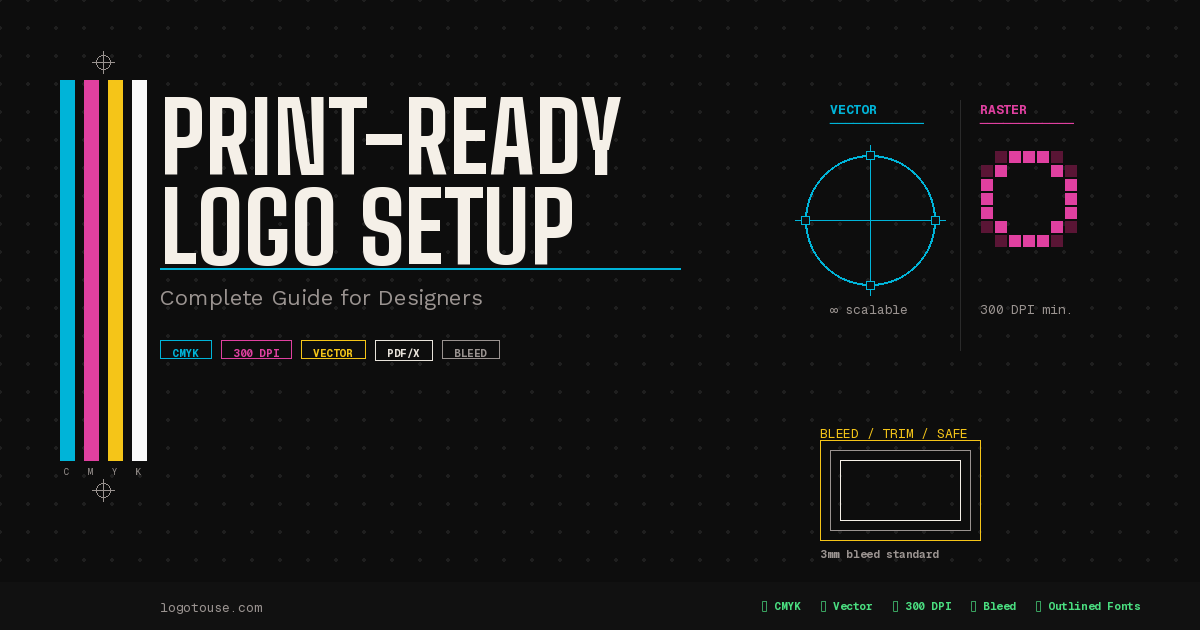
This guide covers everything you need: file formats, color modes, resolution rules, bleed and safe area, font handling, and software export settings. Whether you're a freelancer, brand manager, or designer building a client's print kit — this checklist will save you time, money, and reprints.
What Does Print-Ready Actually Mean?
A lot of designers confuse "print-ready" with "high quality." They're not the same thing. A beautifully crafted logo saved as a 72 DPI JPEG is not print-ready, no matter how much work went into it.
Print-ready means a file is formatted so that a commercial printer can output it exactly as intended, without any guesswork. That involves several specific requirements working together:
- Vector-based artwork or raster artwork at sufficient resolution
- Correct color mode — CMYK or Pantone, not RGB
- Proper bleed where the design extends to the edge of a page
- Fonts handled correctly — outlined or embedded
- No compression artifacts, transparency issues, or missing links
Definition: Print-ready logo = a correctly formatted file prepared for commercial printing that includes proper color mode, resolution, bleed, and font handling.
Vector vs. raster is the foundational distinction. A vector file uses mathematical paths to define shapes, meaning it scales to any size without losing quality. An EPS or AI file can go from a business card to a billboard without degrading. A raster file is made of pixels with a fixed resolution — scale them up too far and you get a blurry, pixelated result.
300 DPI vs. vector resolution independence: Vectors have no DPI because they're not pixel-based. But when working with raster logos, 300 DPI at the final print size is the professional minimum. A logo that's 300 DPI at 2 inches wide becomes only 75 DPI if you scale it to 8 inches. Always check DPI at final size.
Flattened vs. editable files: An editable file preserves your layers, live text, and effects. A flattened file merges everything into a single layer, sometimes required for print. Always keep your editable master file and send a flattened or outlined version to the printer.
Essential File Formats for Print
Not all file formats are created equal. Here's what each format does and when to use it for print production.
AI (Adobe Illustrator) is your master file — all layers, live text, and editable vector paths. Never send this directly to a printer unless they specifically request it and you've already outlined fonts.
EPS (Encapsulated PostScript) is the classic universal vector format, supported by virtually every professional design application and RIP system. EPS is widely preferred for older print workflows. For a deeper look, see our guide on EPS logo files explained.
PDF (Portable Document Format) is the format most modern printers prefer. A properly configured PDF/X-1a or PDF/X-4 file embeds all fonts, color profiles, and imagery with no outside dependencies.
SVG (Scalable Vector Graphics) is excellent for web and screen, but not always suitable for commercial press. Many printers don't accept SVG natively, and it handles color in ways that cause CMYK issues. For more on SVG for digital use, read best logo formats for websites.
PNG and JPG are for previews and digital use only. Never supply these to a professional printer as your print file. Even if accepted, confirm the DPI is 300 at final size.
Format Comparison
| Format | Vector | Editable | Best For | Print-Safe |
|---|---|---|---|---|
| AI | Yes | Yes | Master / source file | With caveats |
| EPS | Yes | Partially | Universal print delivery | Yes |
| Yes / Both | No | Printer-preferred delivery | Yes (PDF/X) | |
| SVG | Yes | Yes | Web, digital use | Rarely |
| PNG | No | No | Digital previews, web | No |
| JPG | No | No | Digital previews | No |
CMYK vs RGB: Why Color Mode Matters
This is where more print jobs go wrong than almost anywhere else. Printers use CMYK (Cyan, Magenta, Yellow, Key/Black) inks. Monitors use RGB (Red, Green, Blue) light. These are fundamentally different color systems that don't map to each other perfectly.
When you send an RGB file to a commercial printer, the RIP software converts it to CMYK automatically. The problem is that RGB can produce colors physically impossible to replicate with ink — particularly vivid blues, electric greens, and bright reds. The automatic conversion often produces dull, muted, or noticeably shifted colors.
The fix: convert to CMYK before you send the file. Do it yourself in your design software so you control the result. Adjust any colors that shift badly during conversion, and proof before final output.
Pantone (PMS) spot colors use a premixed ink matched to a standardized swatch system — guaranteed color results regardless of printer or substrate. If your logo has a specific brand color, Pantone gives you the most consistent result across print vendors.
Process color (CMYK) is fine for full-color photography and complex illustrations. Spot color (Pantone) is best for logos and brand identity where color consistency is non-negotiable.
When to convert: If your printer supports spot color printing (1–3 color jobs like letterhead or packaging), keep your Pantone values. For full-color process jobs like brochures or catalogs, convert Pantone to CMYK and verify the result. The conversion can produce visible color differences — always do a physical proof before a full print run.
If your logo exists in colored, black, and white versions — as it should — make sure each version is prepared correctly. Browse colored logos, black logos, and white logos to see how professional logos handle these variations.
Resolution and Vector Requirements
Logos should be vector whenever possible. There is no resolution limitation — your AI or EPS logo can go from a 0.5-inch stamp to a 40-foot building wrap with zero quality loss.
When working with a raster logo, here are the hard rules:
300 DPI is the professional minimum for print — at the final output size. A logo at 300 DPI at 3 inches wide drops to 100 DPI if you scale it to 9 inches. Always calculate: DPI = pixel width ÷ final print width in inches.
Avoid upscaling. Bumping a 72 DPI web logo to 300 DPI in Photoshop by changing document settings doesn't add real detail — it just makes the file larger with the same blurry output.
Avoid compression artifacts. JPG compression creates blocky distortion around hard edges and text. Even a "high quality" JPG saved multiple times accumulates these artifacts. Always go back to the original uncompressed source file.
Large format printing (banners, trade show displays, vehicle wraps) can use lower DPI because viewing distance is greater — 100 to 150 DPI at final size is often acceptable. Always confirm with your print vendor.
Bleed, Safe Area, and Margins
If any part of your design needs to print right to the edge of the paper, you need bleed. Without it, minor cutting variations leave a thin white border along one or more edges.
Standard bleed is 0.125 inches (3mm). Your artwork extends 3mm beyond the final trim size on all sides where the design touches the edge.
The trim line is where the paper gets cut. The bleed area extends beyond it. The safe area sits inside it. Keep critical content — like your logo — at least 3mm inside the trim line.
- If a logo is centered and doesn't touch the edges, bleed isn't relevant to the logo itself.
- If the logo overlaps the edge of a bleeding background, the background needs bleed even if the logo doesn't extend that far.
- For business cards, stickers, labels, and packaging, always set up your document with bleed from the start.
Setting bleed in Adobe Illustrator: Enter 3mm in the Bleed fields when creating your document. In the Save As PDF dialog, check "Use Document Bleed Settings."
Embedding vs. Outlining Fonts
Fonts are one of the sneakiest causes of print file failures. If your logo contains live text using a font that isn't on the printer's system, that text will be substituted with a different font or flagged as an error.
Converting fonts to outlines is the safest approach. When you outline text, you convert it from live type into vector paths — letterforms become shapes, no font file needed, and the shapes print exactly as designed.
In Adobe Illustrator: Select all text, go to Type > Create Outlines (or Shift + Ctrl/Cmd + O). The text becomes vector artwork.
Embedding fonts in PDFs is the alternative. When you export using the PDF/X-1a or PDF/X-4 preset, font embedding is handled automatically. However, outlining is still the safest approach for logos.
Always keep your editable master file separate. Once you've outlined fonts, you can no longer edit the text. Save a live-text version before outlining, then send the outlined version to the printer.
Export Settings for Adobe Illustrator
Here's a step-by-step workflow for preparing a print-ready logo in Illustrator:
Go to File > Document Color Mode > CMYK Color. Do this before designing if possible, but it can be changed at any point.
Go to Object > Expand and check "Stroke" to convert stroked paths to filled shapes. This prevents stroke weight inconsistencies at print.
Select All (Ctrl/Cmd + A), then go to Type > Create Outlines. Verify no text remains live in the Layers panel.
If your logo uses drop shadows or opacity masks, go to Object > Flatten Transparency. PDF/X-4 supports live transparency; PDF/X-1a does not.
Go to File > Document Setup and add 3mm bleed if the design includes full-bleed elements.
Go to File > Save As > Adobe PDF. Choose PDF/X-1a:2001 for maximum compatibility, or PDF/X-4 for modern workflows. Under "Marks and Bleeds," check "Use Document Bleed Settings."
Go to File > Save As > EPS. Choose the highest compatibility setting. EPS is ideal if your printer specifically requests it or you're delivering to an older workflow.
Export Settings for Adobe Photoshop
Photoshop is a raster application, so logos exported from Photoshop are inherently raster. Use this workflow only when vector output isn't possible — for example, a photographic or textured logo treatment.
Go to Image > Image Size. Uncheck "Resample," enter the final print width, and verify the resolution reads 300 DPI or higher.
Go to Image > Mode > CMYK Color. Accept the warning, then review and adjust any colors that shift.
Go to Layer > Flatten Image. Many printers require a flattened file, especially for TIFF or EPS formats.
For PDF: File > Save As > Photoshop PDF, using the PDF/X-1a preset. For TIFF: use LZW (lossless) or no compression. Never use JPEG compression for print TIFFs.
Common Print Mistakes to Avoid
These errors lead to wasted print runs, rejected files, and costly reprints. They're all entirely avoidable.
The automatic CMYK conversion at the print shop can shift your brand colors significantly. Always convert to CMYK yourself so you control the result.
Web logos are typically 72–96 DPI. Even a large file can be unusable for print. Check DPI at final size before assuming a file is good enough.
If your design runs to the edge of the printed piece, you need 3mm of bleed. Without it, cutting variations leave a white sliver.
Missing font errors are one of the top reasons print files are rejected. Always outline your fonts before delivery.
Drop shadows, feathered edges, and blending modes can cause issues in older PostScript-based workflows. Flatten transparency when in doubt.
"Save for Web" applies compression and RGB conversion. Always use print-specific export presets.
Black text should usually overprint; other colors should not, unless intentional. Check your overprint settings before sending.
If you have a vector logo and rasterize it before sending, you've lost the main advantage of the vector format. Keep it vector.
For more on logo usage across contexts and file types, see our guides on how to use logos in Figma and using logos in PowerPoint.
Print-Ready Logo Checklist
Use this before sending any logo file to a commercial printer. Check every item without exception.
- File is vector-based (AI, EPS, or vector PDF), or raster at 300 DPI at final output size
- Color mode is CMYK or Pantone spot color — not RGB
- All fonts are outlined or fully embedded in the PDF
- Bleed is included (3mm / 0.125 in) where the design extends to the edge
- Saved as PDF/X-1a, PDF/X-4, AI, or EPS
- No compression artifacts — no JPG compression applied
- Transparency flattened if using PDF/X-1a or if printer requires it
- Strokes expanded to filled shapes where applicable
- Overprint settings reviewed for black text and spot colors
- Editable master file saved separately before outlining fonts
- File proofed via soft proof or physical proof before full print run
- Printer specifications confirmed — bleed, file format, color profile preferences
Understanding Logo Variations for Print
A complete print-ready logo package isn't just one file. A professional logo system includes multiple versions: a full-color version, a black version for single-color printing, and a white version for dark backgrounds.
Understanding logo types also affects your print setup. A wordmark logo (text only) requires careful font outlining, while a symbol-based logo may need special attention to fine details at small sizes. Minimalist logos with very thin strokes need those strokes expanded before print to avoid them disappearing at fine detail levels.
Frequently Asked Questions
What file format do printers prefer for logos?
Most commercial printers prefer a PDF/X-1a or PDF/X-4 file for general print jobs. For specialty or older workflows, an EPS file is universally supported. AI files are sometimes accepted but require the same version of Illustrator to open correctly, so they're not ideal for delivery unless specifically requested.
Is PNG suitable for professional printing?
No, in most cases. PNG is a raster format optimized for screens at 72–96 DPI. Even a large PNG at 300 DPI can work for very small print applications, but it cannot scale like a vector file. For professional print jobs, a vector format (PDF, EPS, AI) is strongly preferred. PNG is appropriate only for digital previews, websites, and presentations.
Should logos always be CMYK for print?
Yes, with one exception: Pantone spot colors should remain as Pantone values when the printer is set up for spot color printing. For standard 4-color process printing — brochures, magazines, business cards — CMYK is required.
What resolution is required for large format printing?
Large format printing (banners, building wraps, trade show displays) typically requires 100 to 150 DPI at final size, not 300 DPI. Viewing distance is greater, so lower resolution is acceptable. Logos and text should still be vector whenever possible. Always confirm requirements with your print vendor.
Do I need bleed for a business card logo?
You need bleed if the background extends to the edge. A typical business card requires 3mm bleed on all sides if there's a colored background that goes edge to edge. If the card is white with a centered logo, bleed isn't strictly necessary — though adding it doesn't hurt.
Why did my printed logo colors change?
This is almost always a color mode mismatch. Your logo was likely in RGB, and the printer automatically converted it to CMYK. The conversion doesn't preserve all colors perfectly — especially vivid blues, bright reds, and electric greens. The fix: convert to CMYK yourself before sending, then review and adjust any colors that shift.
Can I send SVG to a commercial printer?
Rarely, and with caution. Most commercial print shops don't accept SVG natively. SVG uses RGB color by default and doesn't integrate cleanly with CMYK print workflows. Convert SVG to EPS or PDF using Illustrator or Inkscape before sending. SVG is excellent for web and screen — not for commercial press.
Should I flatten transparency before printing?
PDF/X-1a does not support live transparency and requires flattening before export. PDF/X-4 supports live transparency, so flattening isn't required. When in doubt, flatten — complex blending modes can produce unexpected results in some RIP systems, and a flattened file is always safer for older workflows.
What is a PDF/X file and why does it matter?
PDF/X is an ISO standard subset of PDF designed specifically for print production. It ensures the file is self-contained and print-ready: fonts must be embedded, RGB images are flagged or disallowed, and color profiles must be correctly specified. PDF/X-1a is the most conservative; PDF/X-4 is more modern and supports live transparency and ICC color management.
How do I know if my exported PDF is truly print-ready?
Open it in Adobe Acrobat and use Print Production > Output Preview and Preflight. Output Preview shows a CMYK separation view — click the plate toggles to verify colors. Preflight runs an automated check and reports any issues like RGB images, missing fonts, or transparency problems.
Need logo files ready to print?
Browse thousands of professional logo assets — available in the right formats for both print and digital use.
Explore LogoToUse →