Logo Use Cases
|
Feb 19, 2026
Logo Sizing for Social Media: The Complete Platform-by-Platform Guide (2026)
Your logo is the first thing people see on any social media profile. It appears in feeds, comment sections, search results, and on mobile screens smaller than your palm.
Your logo is the first thing people see on any social media profile. It appears in feeds, comment sections, search results, and on mobile screens smaller than your palm. Get the sizing wrong and you get a blurry, cropped, or distorted mark that quietly erodes brand trust every single day.
This guide gives you exact dimensions, file format recommendations, safe area rules, and practical tips for every major platform, so your logo always looks sharp, no matter where it lands.
Why Logo Sizing Matters for Social Media
Most designers know to deliver a high-resolution logo file. Fewer think carefully about what happens after upload. Social media platforms do three things to every image you give them: they resize it, they compress it, and on most platforms they crop it into a circle.
Each of those steps is a potential quality killer.
According to Sprout Social's research, profile images are among the most-viewed assets on any platform, appearing next to every post, comment, and message a brand sends. A pixelated or cropped logo in that position is the visual equivalent of a typo in your email signature.
Here are the four main risks of incorrect logo sizing:
Cropping risk. Most platforms display profile images as circles. If your logo was designed for a rectangular canvas, key elements, especially text, can be sliced off by the circular mask before users ever see them.
Pixelation. Uploading a logo at exactly the minimum required size, say 400x400px, means the platform has no headroom. Any slight upscaling during rendering produces visible blurring and artifact edges.
Brand distortion. Platforms sometimes stretch images to fit their display container if aspect ratios do not match. A stretched wordmark is immediately noticeable and looks amateurish.
Compression artifacts. Platforms like Facebook and Instagram apply their own JPEG compression to uploaded images. Low-resolution or already-compressed files lose detail fast. Uploading at a higher resolution gives the algorithm more to work with and the result looks cleaner.
Understanding the difference between wordmarks and symbol logos also matters here. A standalone icon or symbol adapts far more easily to square and circular profile frames than a horizontal wordmark does. If your brand currently only has a wordmark, building a symbol or monogram variant specifically for social use is worth the investment.
Platform-by-Platform Logo Size Guide
Instagram displays profile images as circles across the app, but stores them as squares internally. The display size on desktop is 150x150px, but you should never upload at that resolution.
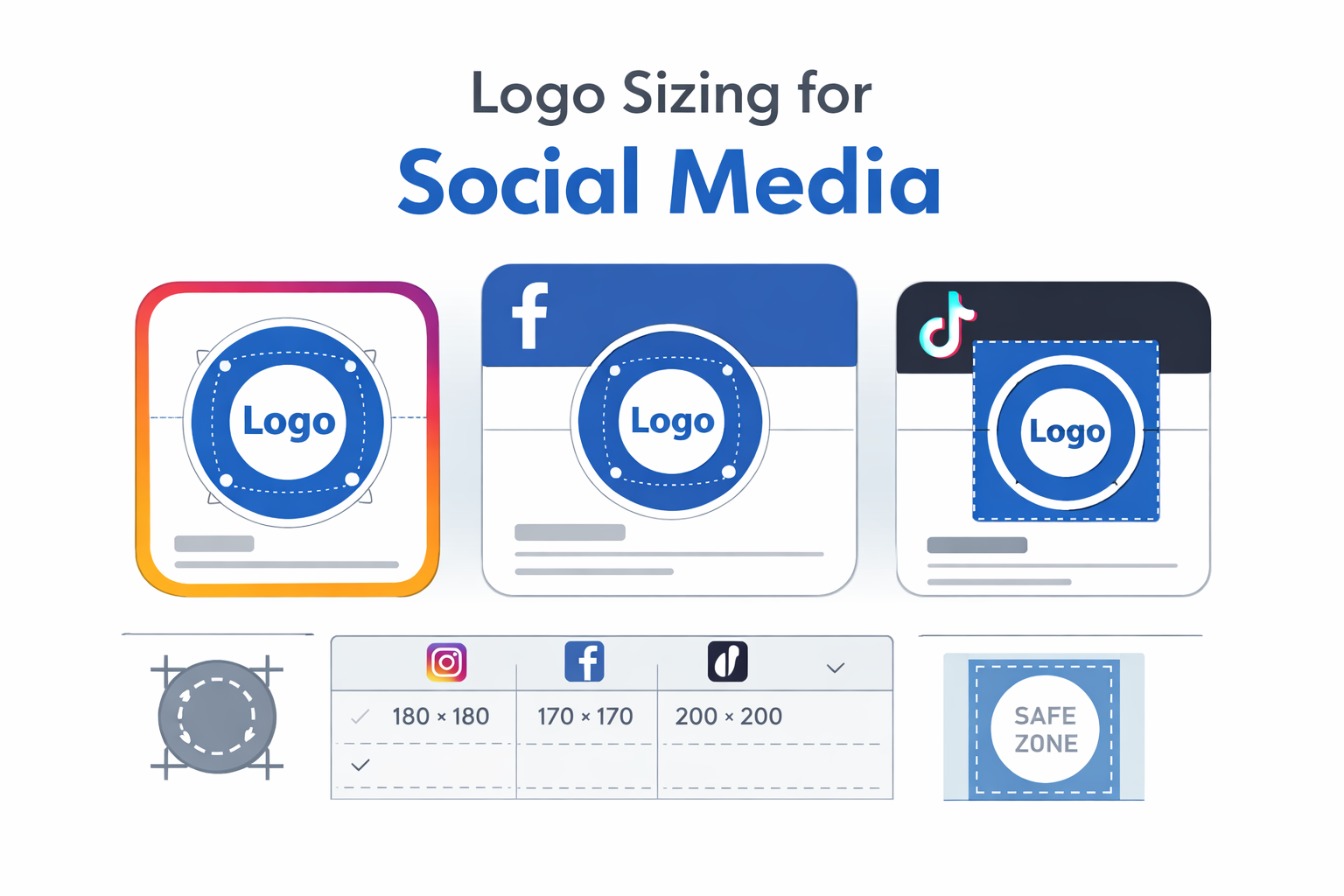
Profile image size: 320x320px minimum, 1080x1080px recommended upload size File type: PNG with transparent background (or white if your logo has no transparent variant) Safe zone: Keep all logo elements within the center 70% of the canvas. A 1080x1080px upload should have all meaningful content sitting inside a roughly 756x756px central area. Tip: If you use a wordmark on Instagram, the text will almost certainly be unreadable at the sizes Instagram renders profile pictures. Use your icon, monogram, or a simplified symbol instead.
Instagram Stories and Reels also display your profile image at small sizes next to your username. A cluttered or text-heavy logo simply will not read in these placements.
Facebook applies heavy compression and has changed its profile image specs several times. Current recommendations account for both personal and Page displays.
Profile image size: 170x170px displayed on desktop, 128x128px on mobile. Upload at 400x400px minimum, ideally 800x800px for quality headroom. File type: PNG strongly preferred. JPEG compression on Facebook is aggressive and will introduce banding and edge blur on logos with clean lines. Safe zone: The circular crop on Facebook Pages removes corners. Apply at least 15% padding on all sides relative to your canvas. Tip: Facebook also uses your profile image as a tiny 32x32px favicon in browser tabs. Test that your logo is still identifiable at that size. If it is not, that is a strong signal to create a simplified icon version.
TikTok
TikTok profile images are circular and appear at relatively small sizes in the For You Page feed. The platform has its own compression pipeline, making high-resolution uploads especially important.
Profile image size: 200x200px minimum display, upload at 400x400px to 1000x1000px File type: PNG or GIF (TikTok supports animated profile pictures for Pro accounts) Safe zone: TikTok adds a thin circular border around profile images in some contexts. Keep content well within a 75% inner circle to avoid the border intersecting with logo elements. Tip: High-contrast logos perform best on TikTok. The platform's dark-mode-first interface means light logos on transparent backgrounds can disappear. Test both dark and light backgrounds before uploading.
X (formerly Twitter)
X displays profile images as circles across the platform. The dimensions are relatively forgiving, but compression is still applied on upload.
Profile image size: Displayed at 400x400px, upload at 400x400px minimum, recommended 800x800px File type: PNG or JPEG. PNG is preferred for logos with clean edges. Safe zone: The circular crop is strict on X. Apply 10-15% padding on all sides. Any logo element touching the canvas edge will be cut. Tip: X also displays a header image (1500x500px) that sits directly above your profile picture. These two visuals interact. Make sure your logo color does not clash with or disappear into your header image.
LinkedIn is used predominantly in professional contexts, and profile and Page images are often the first touchpoint for B2B brand discovery. Quality matters more here than on entertainment-first platforms.
Company Page logo size: 300x300px minimum, displayed at 60x60px in feeds. Upload at 400x400px. Cover image: 1128x191px File type: PNG with transparent background for logos. JPEG for photographic cover images. Safe zone: LinkedIn does not apply circular cropping to Company Page logos, which is a meaningful advantage. You still need to apply padding of about 10% on all sides, but the square format is far more flexible for wordmarks and complex marks. Tip: LinkedIn users are often viewing on desktop. This is one of the few platforms where a slightly more complex logo or wordmark can work, as long as it is still legible at 60x60px in the feed view.
YouTube
YouTube uses your Google account profile image across YouTube, Gmail, and other Google services. Your channel banner and profile image work as a paired visual system.
Profile image (Channel Icon): 800x800px minimum, displayed at 98x98px on desktop Channel banner: 2560x1440px (safe area: 1546x423px centered) File type: PNG or JPEG. PNG recommended for logo icons. Safe zone: YouTube crops profile images into a circle. Apply generous padding, at least 20% on each side. The channel banner has an aggressive safe area, because it displays differently across TV, mobile, tablet, and desktop. Keep your logo or key elements in the central 1546x423px zone. Tip: The channel icon appears next to every video in search results and in the suggested panel. Test at the tiny rendered sizes. If viewers cannot identify your brand in under one second, simplify.
Pinterest is a visual-first platform with a predominantly mobile user base. Profile images are circular and display at relatively small sizes against image-heavy boards.
Profile image size: 165x165px display, upload at 400x400px minimum File type: PNG preferred Safe zone: Apply 15% padding minimum given the circular crop. Pinterest renders profile images very small in the context of search and feed, so simple, high-contrast logos perform best. Tip: Pinterest also allows a cover image for business accounts (800x450px). Use this to create visual context for your brand that compensates for the limitations of a small profile icon.
Logo Format Recommendations
Choosing the right file format is as important as choosing the right dimensions. Many logos look fine at upload and then degrade immediately because the wrong format was used.
PNG vs JPG vs SVG
PNG is the default recommendation for all logo uploads on social media. It supports transparent backgrounds, uses lossless compression, and handles clean edges, flat colors, and fine lines without introducing artifacts. Virtually every platform accepts PNG.
JPG (JPEG) is a lossy format. Every time a JPEG is saved, quality is lost. For social media logos, this is compounded by the platform's own compression layer. A logo saved as JPEG and then compressed by Instagram has been through two rounds of quality reduction. Avoid JPEG for logos unless the platform explicitly requires it.
SVG is a vector format and is theoretically ideal because it scales to any size without quality loss. However, no major social media platform currently accepts SVG for profile images. SVG is the right choice for your website, for using logos in Figma, and for print production. For social platforms, export your SVG to a high-resolution PNG.
For a deeper breakdown of when to use each format, read the guide on best logo formats for websites.
Transparent Backgrounds
Always use a transparent background for your social media logo uploads unless your logo is specifically designed to sit on a colored background. Transparent backgrounds let the platform's own background color show through, which prevents the ugly white box that appears around logos uploaded with a solid background onto platforms that display them on a colored surface.
If your logo has elements that only work against a specific background color, consider creating platform-specific variants. Black logo versions work well on light backgrounds, while white logo versions are better suited to dark interface themes.
Retina and High-Resolution Displays
Modern smartphones and many desktop monitors are high-DPI (often called Retina displays). These screens use two or more pixels to render each logical pixel, which means a 400x400px image displayed at 200x200px logical pixels looks crisp, while a 200x200px image displayed at the same size looks blurry.
The practical rule: always upload at double the platform's minimum display size. If Instagram displays at 110x110px, upload at 220x220px or higher. Most recommendations in this guide already account for this, but it is the underlying reason those numbers exist.
Safe Area and Padding Guidelines
The concept of a safe area comes from broadcast television, where important content needed to stay within a zone guaranteed to be visible on every screen. The same logic applies to social media logos.
Understanding Circular Cropping
Most platforms display profile images as circles. Your file is square. That means the four corners of your image are invisible to users. Any logo element sitting in those corners, including the edges of letterforms, decorative details, or taglines, will be cropped away.
The formula to understand the visible area is straightforward. For a square canvas of side length S, the largest inscribed circle has a radius of S/2. The corners of the square lie S * 0.293 outside the circle edge, which means roughly 29% of the canvas width is outside the safe zone in corner regions.
Practical padding recommendations by content type:
- Symbol or icon logo: 15-20% padding on all sides (icon should occupy the central 60-70% of the canvas)
- Monogram logo: 10-15% padding (letters can be slightly larger but still need breathing room)
- Wordmark: Strongly discouraged for circle-cropped profiles. If unavoidable, use 20% padding and accept that the text will be very small
Working with Square Canvases
LinkedIn for Company Pages and some other non-circle placements give you a square canvas. Padding is still important here, not for cropping, but for visual breathing room. A logo that bleeds to the edges of its container looks cramped and unpolished.
For square displays, apply 10-12% padding on all sides. For a 400x400px canvas, that means keeping all logo elements within a central 320x320px area.
Common Mistakes to Avoid
Uploading a Horizontal Logo Without Adaptation
A standard horizontal wordmark, typically around 3:1 or 4:1 width-to-height ratio, does not fit in a square profile image frame. Either the logo is scaled down so small it becomes illegible, or it is cropped to fit. Neither outcome is acceptable.
The solution is a dedicated icon or square variant of your logo. Most brand systems should include one. If yours does not, check out LogoToUse for reference and resources on building a complete logo system.
Ignoring Circular Masks
This is the most common mistake and the most damaging. Designers create a beautiful square logo, upload it, and do not notice that the platform has silently removed the corners. When a viewer looks at the profile, what they see is a partial, confusing version of the intended mark.
Always preview your logo in a circle crop before uploading. Every design tool, including Figma, Photoshop, and Canva, makes this simple. Create a circle mask over your logo canvas and check what survives.
Using Low-Resolution Raster Files
Uploading a 200x200px PNG to Instagram when the recommended upload is 1080x1080px is a guaranteed path to blurry results. Platforms upscale images that are below their display threshold, and upscaling raster images creates visible blurring.
If you only have a low-resolution raster file, the right step is to source a vector file (EPS or SVG) and re-export at the correct size. For a full explanation of vector formats, read the guide on EPS logo files explained.
Overcrowded Typography
Some logos include taglines, website URLs, or other small text alongside the main mark. These elements are completely illegible at social media profile image sizes, typically rendering at under 150px wide. Upload a simplified version of your logo without supporting text for profile image use.
Using the Same File Across Every Platform
Each platform has different compression, different display sizes, and different cropping behavior. A single 400x400px PNG might be acceptable across platforms, but a carefully prepared platform-specific file at the right resolution for each context will always look better.
Consider maintaining a simple folder in your brand asset library with platform-specific exports, labeled clearly. This takes 20 minutes to set up and saves confusion every time you need to update a profile.
Sizing Checklist: Quick Reference
Use this before uploading to any platform:
- Confirm the upload file is PNG with transparent background
- Confirm upload resolution is at least double the platform's display size
- Preview the logo in a circular crop to check for unwanted cropping
- Confirm all meaningful content sits within the central 70% of the canvas (the safe zone)
- Check legibility at the platform's actual rendered display size (zoom out)
- For platforms with dark interfaces, test the logo on a dark background
- For presentations and decks using these logos, see the complete guide to using logos in PowerPoint
- Confirm you are using a simplified icon or symbol variant, not a full horizontal wordmark
- Save platform-specific exports with clear naming conventions (e.g., brand-logo-instagram-1080.png)
Resources and Logo Downloads
If you are building a brand kit and need logo files optimized for use across platforms, LogoToUse provides ready-to-use logo assets in multiple variants:
- Colored logo versions for standard use on light and neutral backgrounds
- Black logo versions for use on white or very light backgrounds
- White logo versions for use on dark backgrounds and dark-mode interfaces
For designers building brand systems and wanting to understand the underlying visual logic, the guide on minimalist logos explains why simplified marks perform better in small-size contexts like social profiles, and how to approach reducing a complex logo for icon use.
FAQ: Logo Sizing for Social Media
What size should a logo be for an Instagram profile?
Instagram displays profile images at approximately 110x110px on mobile and 150x150px on desktop, but you should upload at 1080x1080px. The higher resolution gives Instagram's compression algorithm more to work with, resulting in a visibly sharper image. Always upload as PNG and ensure all logo elements are within the central 70% of the canvas to account for the circular crop.
Why does my logo look blurry on Facebook?
There are two likely causes. First, you may have uploaded a file that is too small. Facebook recommends a minimum of 400x400px, and 800x800px is better. Second, Facebook applies aggressive JPEG compression to uploaded images. Uploading as a high-resolution PNG gives the platform better source material to compress from. If the file is already a JPEG, re-exporting from a vector source (SVG or EPS) as a PNG before uploading will produce a noticeably cleaner result.
Should I upload an SVG file to social platforms?
No major social media platform currently accepts SVG for profile images. SVG is a vector format intended for web use and design software, not for direct upload to platforms. The correct workflow is: design and store your logo as an SVG, then export it as a high-resolution PNG at the recommended upload size for each platform. If you need guidance on when SVG is the right choice versus PNG, the best logo formats for websites guide covers this in detail.
How much padding should a logo have for social media?
For circular profile images, keep all logo elements within the central 70% of your canvas. On a 1080x1080px canvas, that means a 756x756px safe zone. In practical terms, apply at minimum 15% padding on each side for symbol or icon logos, and 20% for any logo that includes text. LinkedIn Company Pages use a square crop, where 10-12% padding on each side is sufficient.
Can I use the same logo file for all platforms?
Technically yes, in that a 1080x1080px PNG with proper padding will be accepted by most platforms. Practically, no. Each platform applies different compression levels, displays images at different physical sizes, and renders them in different contexts (some light-mode, some dark). The minimum you should do is maintain separate files for light and dark interface contexts. The ideal is platform-specific exports with a short testing step for each.
What resolution prevents compression artifacts on social media?
Upload at the highest resolution each platform accepts or recommends, and always use PNG rather than JPEG. Compression artifacts appear when the platform has to do too much work to resize and compress a small or already-compressed source file. For most platforms, uploading at 800x800px to 1080x1080px as a lossless PNG provides enough source quality that compression artifacts are minimal or invisible. Never upload a logo that has already been saved as a JPEG, as it will carry artifacts from that first compression pass into the platform's second pass.
What is a "safe zone" and why does it matter for logos?
A safe zone is the portion of your canvas where important content is guaranteed to be visible regardless of how the platform crops or frames the image. For circular profile images, the safe zone is the largest circle that fits within your square canvas. Any logo element outside this zone risks being cut off. Understanding and designing within the safe zone is especially critical for logos that include letterforms or fine detail near the edges of the frame. The safe zone concept is also relevant for banner images and cover photos, where display sizes vary significantly across device types.
Is there a difference in sizing requirements between a personal profile and a business page?
On some platforms, yes. Facebook, LinkedIn, and YouTube treat personal profiles and business or company pages as distinct account types with separate image specs in some cases. Generally, business pages on these platforms have more flexibility, cleaner square crops (on LinkedIn), and more options for supplementary imagery like cover photos or channel banners. Always check the current platform documentation, as these specs update periodically. The dimensions in this guide reflect current 2026 specifications.
Read more
Subscribe to get fresh stories, tips, and logo resources delivered straight to your inbox.