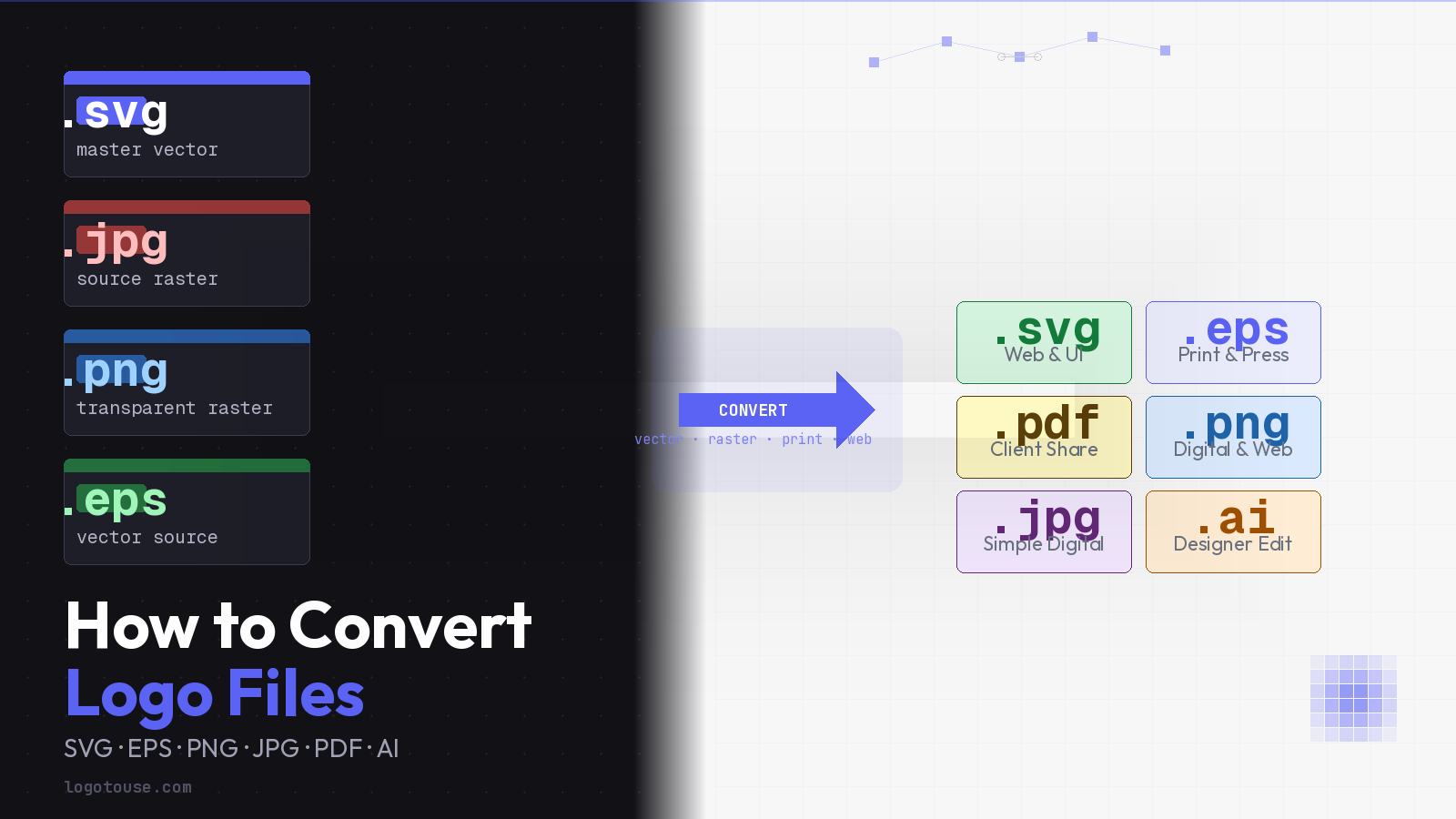
Logo file conversion is one of the most misunderstood tasks in everyday design and brand management. It is not simply a matter of renaming a file or running it through a quick online tool. The format a logo is stored in determines its quality ceiling, its compatibility with print and digital workflows, and how much flexibility you retain for future use.
This guide covers everything you need to convert logo files correctly: the difference between vector and raster formats, step-by-step conversion instructions, the best tools available, and the mistakes that silently degrade logo quality. Whether you are a designer, a brand manager, or a business owner handling your own assets, this is the reference you need.
Why Logo File Formats Matter
Every logo file falls into one of two categories: vector or raster. The category determines nearly everything about how the logo performs in the real world.
A raster logo is composed of a fixed grid of pixels. Formats like JPG and PNG store image data this way. The pixel count is set at the moment of creation, so enlarging a raster logo forces software to invent new pixels to fill the gaps. The result is blurring, pixelation, and a file that is simply unusable above its native resolution.
A vector logo stores the image as a series of mathematical paths, curves, and coordinate instructions. Formats like SVG, EPS, and AI work this way. Because the image is described mathematically rather than pixel-by-pixel, it can be scaled to any dimension, from a 16-pixel app icon to a 40-foot building wrap, with zero quality loss at any size.
Understanding this distinction is not just academic. Sending a low-resolution PNG to a commercial printer is one of the most common and costly mistakes in brand production, often resulting in rejected files, reprinting fees, and delayed launches. Our dedicated guide on the best logo formats for websites: SVG, PNG, and JPG explained goes deeper on choosing the right format for each digital context.
| Format | Type | Scalable | Transparent BG | Print Ready | Editable | Best For |
|---|---|---|---|---|---|---|
| SVG | Vector | Yes | Yes | Yes | Yes | Web, UI, responsive design |
| EPS | Vector | Yes | Yes | Yes | Yes | Commercial print, large format |
| AI | Vector | Yes | Yes | Yes | Yes | Designer source files |
| Both | If vector | Yes | Yes | If vector | Print-ready sharing | |
| PNG | Raster | No | Yes | High-res only | No | Web, digital with transparency |
| JPG | Raster | No | No | High-res only | No | Simple digital use |
Common Logo File Types Explained
Before converting anything, it helps to understand precisely what each format is designed to do. Choosing the wrong target format is just as damaging as starting with the wrong source.
SVG — Scalable Vector Graphics
Best for: Websites, app interfaces, and any digital context where responsiveness matters.
✓ Infinitely scalable, browser-native, tiny file size, CSS-styleable
✗ Not supported by some older print workflows or basic image editors
EPS — Encapsulated PostScript
Best for: Commercial printers, embroiderers, large-format fabricators, and packaging suppliers.
✓ Universal in professional print, supports CMYK and Pantone colors
✗ Not viewable in standard browsers, requires specialist software to open
AI — Adobe Illustrator
Best for: Designer source files, ongoing brand development, and full editability.
✓ Maximum editability, preserves layers, effects, and typography
✗ Requires Adobe Illustrator to open; not suitable for direct distribution
PDF — Portable Document Format
Best for: Print-ready sharing with external partners, printers, and clients.
✓ Universally openable, preserves vector data when exported correctly
✗ Can also contain rasterized content — a "vector PDF" must be confirmed explicitly
PNG — Portable Network Graphics
Best for: Web use, digital documents, presentations, and any context requiring transparency.
✓ Lossless compression, supports transparent backgrounds, widely supported
✗ Fixed resolution, blurs when enlarged beyond native pixel dimensions
JPG — Joint Photographic Experts Group
Best for: Simple digital placements on solid backgrounds where transparency is not needed.
✓ Very small file sizes, universally supported across every platform
✗ No transparency, compression artefacts on hard edges, degrades on re-save
For a deeper dive into EPS specifically, our guide on EPS logo files explained covers the format's role in professional print and production workflows.
How to Convert PNG or JPG to SVG
Converting a raster logo to vector is the most technically demanding conversion because you are not simply repackaging existing data. You are recreating the image as mathematical paths. This process is called vectorization or image tracing.
The quality of the result depends almost entirely on the quality of the source file. A crisp, high-contrast black and white logo on a white background will trace cleanly. A low-resolution, multicolor logo with anti-aliasing and gradients will not.
Using Adobe Illustrator (Image Trace)
- Open Adobe Illustrator and place your PNG or JPG file via File > Place
- Select the placed image and open the Image Trace panel from the toolbar or Window menu
- Choose a preset suited to your logo: Black and White Logo for simple marks, 6 Colors or High Fidelity Photo for complex ones
- Click Trace, then click Expand to convert the trace result into editable paths
- Ungroup the result (Object > Ungroup) and delete the background rectangle if present
- Manually review and clean up anchor points — remove unnecessary nodes, smooth curves, and fix jagged edges
- Export as SVG via File > Export As > SVG
Using Inkscape (Trace Bitmap)
- Open Inkscape and import your PNG or JPG file via File > Import
- Select the image and go to Path > Trace Bitmap
- Choose your tracing method: Brightness Cutoff for two-color logos or Colors for multicolor logos
- Click OK to run the trace and close the dialog
- Move the traced vector off the original raster image and delete the original
- Clean up paths using the Node Editor tool
- Save as SVG via File > Save As
How to Convert SVG to PNG or JPG
This direction is simpler because you are moving from a higher-fidelity format (vector) to a lower-fidelity one (raster). The key decision is choosing the right export resolution for the intended use.
Resolution guide before you export
Exporting SVG to PNG in Adobe Illustrator
- Open your SVG in Illustrator and go to File > Export As
- Choose PNG from the format dropdown
- Set resolution: 72 PPI for web, 300 PPI for print
- Tick Use Artboards to export at the exact canvas dimensions
- Click Export
Exporting SVG to PNG in Figma
- Import or open your SVG file in Figma
- Select the logo frame or component
- In the right panel, scroll to the Export section and click the + button
- Choose PNG and set the scale multiplier (2x for retina, 4x for high-resolution print)
- Click Export [filename]
For a complete walkthrough of importing and working with SVG logos in Figma, our guide on how to use logos in Figma covers every step in detail.
How to Convert a Logo for Print
Print conversion is where the most expensive mistakes happen. A logo that looks perfect on screen can appear muddy, color-shifted, or pixelated on press if it has not been prepared correctly.
There are three things to get right before sending any logo to a commercial printer: format, resolution, and color mode.
Format for print
Vector is always the safest option. EPS, AI, and vector PDF are universally accepted by commercial printers, large-format services, embroiderers, and packaging suppliers. Our full guide to print-ready logo setup walks through every technical requirement in detail.
If you only have a raster file available, the minimum acceptable resolution is 300 DPI at the intended print size. A logo that is 300 DPI at 5 centimeters wide but only 72 DPI at 50 centimeters wide will look blurry at the larger size.
RGB vs CMYK: the color mode problem
Screen colors use RGB (Red, Green, Blue), a light-based color model that can display vivid blues, neons, and digital-only hues. Print colors use CMYK (Cyan, Magenta, Yellow, Black), an ink-based model with a smaller gamut.
If you send an RGB logo to a commercial printer without converting, the printer will convert the colors automatically, usually producing results that are duller, greener, or more muted than your screen version. Always convert to CMYK in Illustrator before exporting a print file, and review the converted colors carefully against the RGB original.
Steps to convert a logo for print
- Open the logo source file in Adobe Illustrator
- Go to File > Document Color Mode > CMYK Color
- Review all colors in the Swatches panel and check for any out-of-gamut warnings
- Adjust any colors that have shifted significantly after the CMYK conversion
- Export as EPS or PDF via File > Save As or File > Export
- If supplying PDF, use the PDF/X-1a preset for universal print compatibility
Need a print-ready logo in SVG or EPS? Browse verified downloads at LogoToUse.
Explore logo downloads →Tools to Convert Logo Files
The right tool depends on what you are converting, how complex the logo is, and whether you need the result to be production-ready or just functional. Below are the most reliable options, from professional desktop software to free browser-based tools.
Adobe Illustrator
The definitive tool for logo conversion. Image Trace handles raster-to-vector conversion, and it exports to every professional format including EPS, AI, SVG, and PDF. CMYK color management is built in for print workflows.
Visit Adobe →Inkscape
A powerful free alternative to Illustrator. The Trace Bitmap feature converts raster images to vector paths. Exports to SVG, EPS, and PDF. Best choice for teams without an Adobe subscription.
Visit Inkscape →Figma
Excellent for SVG to PNG/JPG conversions at any scale. Import an SVG, set your export dimensions and multiplier, and download instantly. Less suited for vector tracing but ideal for producing web and digital exports.
Visit Figma →Photopea
A free browser-based editor that mirrors Photoshop's interface. Supports opening and exporting SVG, PNG, JPG, PSD, and PDF. Useful for quick conversions without installing software.
Visit Photopea →CloudConvert
A reliable online conversion service supporting SVG, PNG, JPG, EPS, and PDF. Best for straightforward format changes where the logo does not need editing. Not suitable for raster-to-vector tracing.
Visit CloudConvert →PowerPoint / Google Slides
Both accept SVG directly and can export slides as PNG or JPG. Useful for producing logo exports at specific presentation dimensions. Our dedicated guide covers using logos in PowerPoint in full.
PowerPoint guide →Building a Complete Logo Asset Library
Rather than converting files reactively each time a new request arrives, the most efficient approach is to maintain a complete logo asset library derived from a single master vector source. This eliminates repeat conversion work and ensures every version of the logo is consistent.
A professional brand asset library should contain:
- Master source file: AI or SVG with all color variants, layers intact, and typography live or outlined
- Print delivery files: EPS and PDF in CMYK, one file per color variant
- Web logos: Optimized SVG for each variant, typically under 20 KB per file
- Social media exports: PNG at 1000 x 1000 px for profile images, 1500 x 500 px for headers
- Colored, black, and white variants: Each color version available in all required formats
LogoToUse provides all three color variants for every brand: colored logos, black logos, and white logos, available in SVG and PNG formats ready for immediate use.
If you are thinking more broadly about logo style and structure, our guide on wordmark vs symbol logos is a useful reference for understanding which logo type works best in which context.
Common Mistakes to Avoid When Converting Logo Files
Most logo quality problems are not the result of bad design. They are the result of format decisions made without understanding the consequences. These are the errors that come up most often.
Expecting a perfect result from low-quality source files
Tracing a 150-pixel JPG will produce a muddy, complex vector with hundreds of unnecessary anchor points. Garbage in, garbage out. Always start with the highest-resolution source available.
Upscaling a small PNG for print
A PNG saved at 72 DPI for web use cannot be upscaled to 300 DPI for print by simply changing the number in export settings. The underlying pixel data does not improve. Only a vector source can produce a clean large-format output.
Sending an RGB file to a commercial printer
Printers work in CMYK. An unconverted RGB file will be converted automatically by the printing press, and the color shift can be significant, especially for blues, purples, and vivid accent colors.
Saving as JPG and losing transparency
JPG does not support alpha channels. Any transparent area in your PNG or SVG will be filled with white (or another background color) on JPG export. Always use PNG when transparency is required.
Relying on online converters for professional output
Automated online tools are useful for casual conversions but rarely produce print-ready or fully editable results. Any file going to a commercial printer, embroiderer, or packaging supplier should be prepared in Illustrator or Inkscape.
Exporting at incorrect DPI for the use case
A 72 DPI logo is correct for web. The same logo at 72 DPI on a printed brochure will look soft and unprofessional. Always match DPI to destination: 72 for screen, 300 minimum for print, 600 for fine detail or small text.
For a broader look at design best practices, our article on minimalist logos explained explores how simplicity in logo design makes format conversion easier and results more consistent across every medium.
Which Format to Use in Specific Situations
You are handing off to a commercial printer: Provide an EPS or vector PDF in CMYK. If Pantone spot colors are involved, specify the Pantone codes explicitly rather than relying on the printer to match from CMYK values.
You are placing a logo on a website: Use SVG as the default. It renders crisp on retina screens, is tiny in file size, and can be animated or styled with CSS. Use PNG only as a fallback for browsers or CMS platforms that cannot handle SVG.
You are building a presentation deck: Import SVG directly into PowerPoint or Google Slides for vector rendering at any projection size. If SVG is not supported, export a PNG at 4x scale from your vector source for adequate sharpness on large screens.
You are supplying to an embroiderer or merchandise printer: They will need EPS or AI. Most embroidery digitizing software reads EPS paths to define stitch areas. A PNG or JPG will almost always be rejected or converted poorly.
You are uploading to a social media platform: Export PNG from your SVG master at the exact pixel dimensions required by each platform. Instagram, LinkedIn, and Twitter all have specific profile image and cover dimensions. Export at 2x those dimensions for retina sharpness.