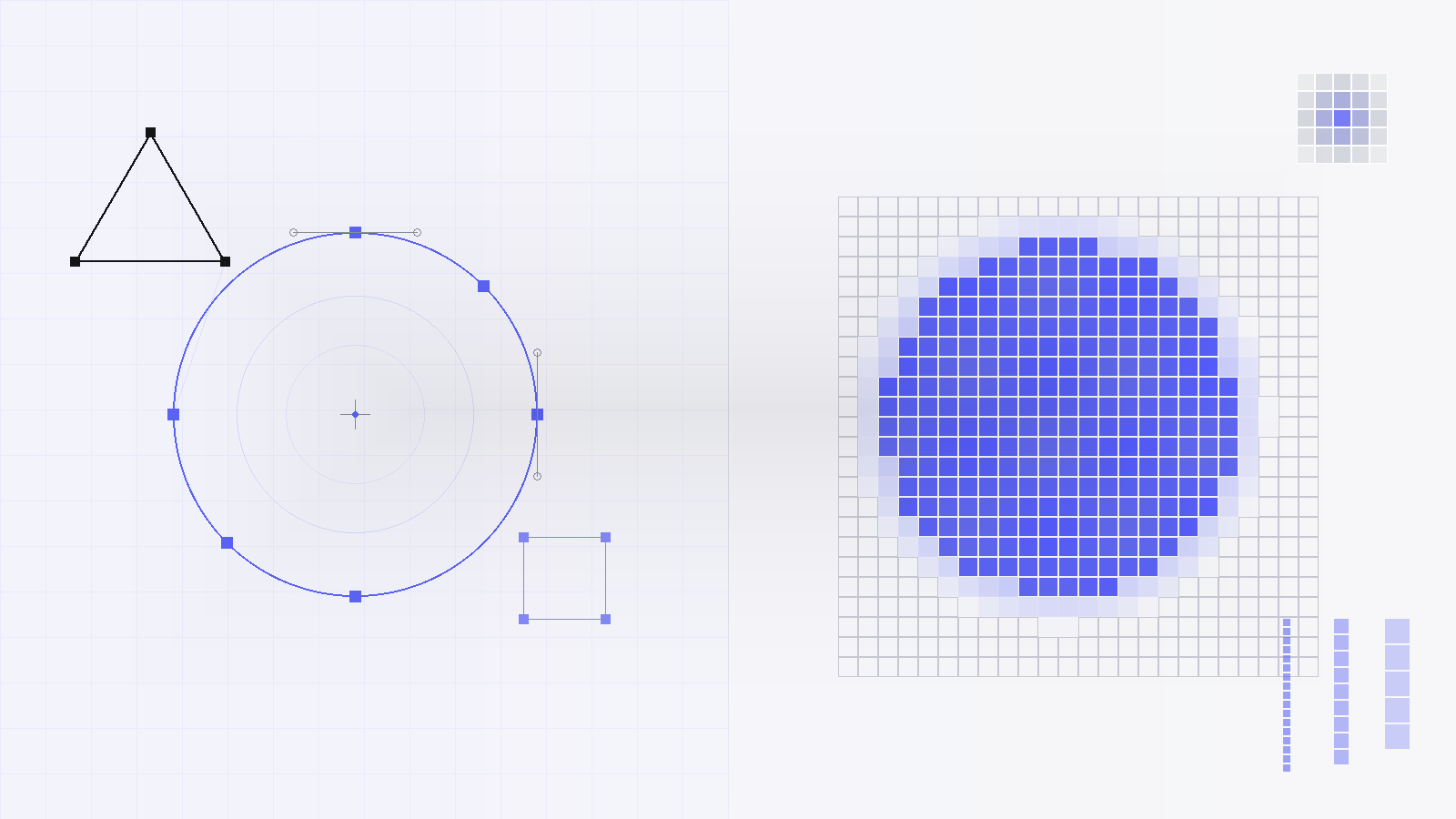
A vector logo is built from mathematical paths and curves. It scales to any size without losing a single pixel of quality. A raster logo is built from a fixed grid of pixels. Enlarge it beyond its native resolution and quality degrades fast. The most common vector formats are SVG and EPS. The most common raster formats are PNG and JPG.
This guide breaks down everything you need to know: how each format works, when to use which, and why downloading the wrong file type can cost you real money on print jobs and brand collateral. Whether you are a designer, a founder, or a marketing manager pulling assets for a campaign, this article has you covered.
What Is a Vector Logo?
A vector logo is defined by mathematical equations rather than pixels. Every curve, line, and shape is stored as a set of coordinates and instructions. When you render the logo at any size, whether on a postage stamp or a 40-foot banner, the software recalculates those paths and draws them at perfect resolution every time.
Adobe Illustrator, Inkscape, and Figma are the most popular tools for working with vector files. On the web, SVG (Scalable Vector Graphics) is the dominant vector standard because browsers render it natively. For print production, EPS (Encapsulated PostScript) and AI (Adobe Illustrator) files are what commercial printers and embroidery shops expect to receive. You can read a deeper breakdown in our guide to EPS logo files explained.
Key advantages of vector logos:
- No quality loss at any size. Mathematical paths render perfectly at 16px for a favicon and at 16 feet for a trade show banner.
- Smaller file sizes for complex shapes. A detailed SVG logo is often just a few kilobytes, while a high-resolution PNG of the same logo can reach several megabytes.
- Fully editable colors and shapes. Designers can adjust any element without rebuilding the file from scratch.
- Ideal for merchandise, signage, and embroidery. Printers and fabricators need vector source files to reproduce logos at physical scale.
- Transparent backgrounds built-in. SVG supports transparency natively, making placement over any background seamless.
Looking for scalable, print-ready brand logos in SVG format?
Browse SVG logo downloads →What Is a Raster Logo?
A raster logo (also called a bitmap logo) is made up of a fixed grid of individually colored squares called pixels. The total number of those pixels is set at creation time, which means raster files are inherently resolution-dependent. A logo saved at 200 by 200 pixels contains exactly 40,000 data points. Ask software to display that image at 600 by 600 pixels and it has to invent new pixels, producing blurring and visual artefacts.
The most common raster formats are PNG (which supports transparency) and JPG (which does not). PNG is far better suited to logos than JPG because JPG compression introduces visible blocky artefacts around hard edges and text, even at high quality settings. For a thorough breakdown of when to use each, see our guide to the best logo formats for websites: SVG, PNG, and JPG explained.
Limitations of raster logos:
- Blurry at large sizes. Any enlargement beyond the original pixel dimensions causes visible softening and pixelation.
- Heavy file sizes at print resolution. A logo at 300 DPI print quality can be several megabytes, making it unsuitable for fast web delivery.
- Harder to edit. Changing a color or shape in a raster logo often means rebuilding elements from scratch.
- JPG introduces compression artefacts. Hard edges and fine text look especially bad when saved as JPG.
- Not suitable for professional print without a high-res source. A 72 DPI screen export will look terrible on a printed brochure.
When you need a raster format, always use PNG over JPG for logos. PNG is lossless, supports transparent backgrounds, and preserves crisp edges. You can browse colored logo downloads, black logo files, and white logo variations at LogoToUse in both vector and raster formats.
Vector vs Raster Logos: Side-by-Side Comparison
The table below gives you a fast, scannable answer to the most common format questions. Use it as a reference when choosing what to download or send to a collaborator.
| Feature | Vector | Raster |
|---|---|---|
| Infinitely scalable | Yes | No |
| Print ready (300 DPI+) | Yes — always | Only if original is high-res |
| Best for web use | Yes (SVG) | Yes (PNG) |
| Transparent background | Yes | PNG yes / JPG no |
| Common file types | SVG, EPS, AI, PDF | PNG, JPG, GIF, WebP |
| Editable colors and shapes | Yes | Limited |
| Quality loss when resized | None | Yes — blurs when enlarged |
| Embroidery and merchandise | Yes | Not recommended |
| Typical file size | Very small (5–50 KB) | Small to very large (varies) |
| Native browser support | Yes (SVG) | Yes (PNG, JPG) |
| Accepted by printers and fabricators | Yes — preferred | Only high-res PNG / TIFF |
SVG is a fully standardized XML-based vector format supported natively in every modern browser, making it the de facto choice for web logos today. For print workflows, major production standards consistently recommend vector-based EPS or PDF as the source format for reproduction at any scale.
Which Logo Format Should You Use?
The straightforward answer is: use vector as your primary file whenever possible and derive raster versions from it for specific platforms. Here is how to think about each situation.
Printing
Business cards, brochures, packaging, signage, and any physical output. Printers work in CMYK and expect EPS or print-ready PDF.
Vector (EPS / PDF)Websites
SVG is the gold standard for web logos. Sharp on retina displays, fast to load, and styleable with CSS. PNG is acceptable when SVG is unavailable.
Prefer SVGPresentations
PowerPoint and Google Slides both accept SVG and PNG. SVG keeps logos crisp at large projection sizes. See our PowerPoint logo guide.
SVG or high-res PNGSocial Media
Platforms accept PNG and JPG. Export at the exact pixel dimensions required per platform, always from your SVG source file.
Export PNG from SVGMerchandise & Embroidery
Screen printers, embroiderers, and laser engravers all require vector files. A PNG will almost always be rejected or returned.
Vector only (EPS / AI)Figma & Design Tools
Import SVG directly into Figma for full editability. Our walkthrough on how to use logos in Figma covers the full process.
SVGOur dedicated guide goes deeper on SVG vs PNG for logos on websites. For professional print specifications, the print-ready logo setup guide covers bleed, DPI, color modes, and file submission requirements in full detail.
Common Mistakes Designers Make With Logo Formats
Even experienced designers occasionally reach for the wrong format. These are the most damaging mistakes when working with logo files, and how to avoid each one.
Sending a low-res PNG to a printer
A logo that looks sharp on screen at 72 DPI will be unusable at print DPI. Always supply EPS or a vector PDF. If you only have a raster file, the printer cannot upscale it cleanly.
Stretching a raster logo
Dragging a PNG beyond its original dimensions introduces blur. Dragging unevenly distorts proportions. Always maintain aspect ratio and use vector for any size you did not specifically export.
Downloading JPG instead of SVG or PNG
JPG has no transparency support. Logos on non-white backgrounds will show a white box. JPG compression also creates visible artefacts around sharp text and thin logo lines.
Ignoring DPI on print exports
DPI only matters when printing, not on screen. If you are exporting a logo for print from any software, confirm the export DPI is 300 or higher before sending the file.
Using the wrong logo variation
Choosing the right format also means choosing the right version. Our guide to wordmark vs symbol logos explains when each works best.
Losing your vector master file
If you are left with only a PNG, any future resizing or redesign becomes painful. Always keep the original SVG or AI as your master, backed up in at least two locations.
If you are building a brand system, our article on minimalist logos explained is a useful companion read on how design simplicity directly improves performance across formats.
How to Convert a Raster Logo to Vector
If you only have a PNG or JPG logo and need a vector file, the process is called vectorization (also called image tracing or autotracing). The quality of the result depends almost entirely on the quality and simplicity of the original raster image.
Professional vectorization is done manually by a graphic designer in Illustrator or Inkscape. They recreate each shape as a vector path by hand, producing a clean, fully editable file. This is the best approach for logos with fine detail, gradients, or complex typography.
Automated vectorization tools such as Adobe Illustrator's Image Trace, Inkscape's Trace Bitmap, or dedicated online converters can produce usable results for simple, high-contrast logos. A clean black and white logo on a white background will trace well. A multicolor, gradient-heavy logo will not.
Steps for basic automated vectorization in Adobe Illustrator:
- Place your high-resolution PNG into a new Illustrator document
- Select the image and open Object > Image Trace > Make and Expand
- Choose a preset appropriate to your logo (High Fidelity Photo, 6 Colors, or Black and White Logo)
- Ungroup the result and clean up any stray paths manually
- Save as SVG or EPS for distribution
One important caveat: automated tracing is not the same as a true vector source file. The result may contain hundreds of unnecessary anchor points and will not be as clean as a file built from scratch in Illustrator. For professional brand use, manual recreation is almost always worth the investment.
For a full breakdown of working with SVG imports in Figma, our Figma logo guide covers the process step by step.
Need a clean, ready-to-use vector SVG right now? Browse brand logos at LogoToUse.
Explore logo downloads →How Vector and Raster Interact in Real Brand Workflows
In practice, most brand workflows use both formats simultaneously, derived from a single vector master. A well-organized brand asset library typically includes:
- Master source: AI or SVG file with full editability and all color variants
- Print delivery: EPS or print-ready PDF in CMYK color mode
- Web logo: Optimized SVG, typically under 20 KB
- Social media exports: PNG at platform-specific dimensions (1:1 for profile images, 16:9 for headers)
- Favicon: ICO file plus 32×32 and 180×180 PNG variants for Apple devices
SVG usage on the web has grown consistently year over year and now appears across the vast majority of high-traffic websites, reflecting a clear industry shift away from static PNG logos toward scalable vector formats. Color variations also matter when managing logos across contexts. A logo that works in full color on a white background may need a white version for dark headers or a single-color black version for embossed print. You can download all three variations directly from LogoToUse: colored logos, black logos, and white logos.
Vector vs Raster for Specific Industries
Retail and packaging: Packaging suppliers and contract manufacturers universally require vector files. Labels, boxes, and bags are printed at production scale where a low-res PNG will not produce usable output. EPS in CMYK or Pantone spot colors is the standard.
Hospitality and food service: Menu design, signage, branded uniforms, and promotional material all benefit from vector source files. A restaurant logo that only exists as a social media PNG will create real problems when a new signage company takes over the job.
Technology and SaaS: App icons and browser favicons are necessarily raster formats (PNG and ICO). But the website header logo, email signature, and any embedded UI usage should always load as SVG for retina display sharpness on modern screens.
Nonprofits and public sector: Organizations frequently share logos with partners, sponsors, and media outlets. Providing only a low-resolution PNG creates problems for anyone trying to feature the logo in print. A simple SVG download page solves this entirely.
A Note on PDF as a Logo Format
PDF is a frequently overlooked format for logo distribution. When a PDF is exported from a vector tool like Illustrator with vector data preserved (rather than rasterized), it functions as a vector format. The recipient can open it in Illustrator, Affinity Designer, or Inkscape and access the original paths.
This makes vector PDF a useful fallback when the recipient does not have software that handles native AI or EPS files. However, PDF files can also contain rasterized content, and there is no way to tell from the file extension alone. Always specify that you are supplying a "vector PDF" when sharing. For a complete breakdown of file types and their production use cases, see our guide to EPS logo files explained.